
Getting Started with Percepio Tracealyzer
Streamed Tracing
Overview
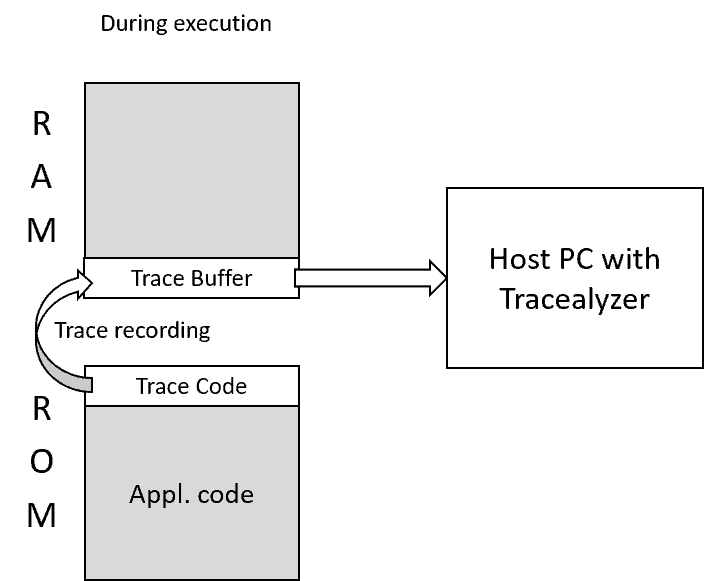
Streamed tracing transfers trace data continuously from the target device to Tracealyzer on the host computer. This enables live trace visualization and long recordings while the target application is running.
A stream port defines how trace data is transferred between the target and host. TraceRecorder provides predefined stream ports for common interfaces and supports custom implementations for other transports.
Typical RTOS trace data rates range from 20–200 KB/s, depending on system activity. Select an interface that can sustain the expected data rate.
1. Configure Target-Side Streaming
Configure TraceRecorder to transmit trace data through a stream port supported by your target platform and Tracealyzer.
The integration steps depend on the RTOS and build system. Some platforms require you to add source files and headers manually; others enable the required components through configuration options.
Select a stream port
Choose a transport supported by your target hardware and host connection.
| Stream port | Transport |
|---|---|
| SEGGER J-Link RTT | Debug probe |
| TCP/IP | Network connection |
| UDP | Network connection |
| USB CDC | USB virtual COM port |
| ARM ITM | Processor trace interface |
| ESP-IDF AppTrace | ESP-IDF debug connection |
Other ports may be available for specific platforms. See the streamports directory.
Configure your RTOS
Expand the section for your platform to find the required configuration, build settings, and streaming options.
FreeRTOS
- Add the TraceRecorder files
Include the common TraceRecorder source files and the FreeRTOS kernel port. When using the GitHub repository, the relevant directories are:
config/include/kernelports/FreeRTOS/kernelports/FreeRTOS/config/kernelports/FreeRTOS/include/
Add the necessary include paths to your project.
- Configure FreeRTOS
In
FreeRTOSConfig.h, enable trace support and include the recorder header:#define configUSE_TRACE_FACILITY 1Add the following at the end of
FreeRTOSConfig.h, subject to any compiler-specific restrictions for assembly files:#if ( configUSE_TRACE_FACILITY == 1 )#include "trcRecorder.h"#endifIn
trcKernelPortConfig.h, configureTRC_CFG_FREERTOS_VERSIONto match your FreeRTOS version.In
trcConfig.h, setTRC_CFG_HARDWARE_PORTto the hardware port matching your target architecture. Include the processor header if required by that hardware port. - Integrate the stream port
Add the source files, headers, and configuration for your selected stream port. Configure its transport-specific settings in
trcStreamPortConfig.h.For J-Link RTT, configure the RTT buffers and transfer mode as needed. For network-based ports, configure the transport and buffering settings required by the implementation.
- Initialize tracing
Call the appropriate recorder initialization and start functions after hardware setup. For a typical application:
xTraceEnable(TRC_START);For host-controlled streaming, use
TRC_START_FROM_HOSTwhere supported. Hardware ports that depend on the RTOS tick source may require initialization before creating RTOS objects and enabling tracing after the scheduler starts.
Reference: TraceRecorder on FreeRTOS
Zephyr
TraceRecorder is available as a configurable Zephyr module in supported integrations. Source inclusion is handled by the build system when the required options are enabled.
- Enable tracing
Add the following to
prj.conf:CONFIG_TRACING=yCONFIG_PERCEPIO_TRACERECORDER=yCONFIG_PERCEPIO_TRC_CFG_CTRL_TASK_STACK_SIZE=1024 - Select the stream port
For example, to stream through SEGGER J-Link RTT:
CONFIG_PERCEPIO_TRC_CFG_STREAM_PORT_RTT=yFor ARM ITM, use:
CONFIG_PERCEPIO_TRC_CFG_STREAM_PORT_ITM=ySelect only the stream port intended for your configuration.
- Configure the recorder start mode
For host-controlled streaming, use:
CONFIG_PERCEPIO_TRC_START_MODE_START_FROM_HOST=yThis allows Tracealyzer to start recording through a host command without blocking application startup.
Alternatively,
CONFIG_PERCEPIO_TRC_START_MODE_START_AWAIT_HOST=ywaits for a host command before the application proceeds. Use this only when the startup behavior is appropriate for your application. - Configure buffering and transport settings
For RTT, review the relevant options, including:
CONFIG_PERCEPIO_TRC_CFG_STREAM_PORT_RTT_UP_BUFFER_SIZECONFIG_PERCEPIO_TRC_CFG_STREAM_PORT_RTT_DOWN_BUFFER_SIZECONFIG_PERCEPIO_TRC_CFG_STREAM_PORT_RTT_UP_BUFFER_INDEXCONFIG_PERCEPIO_TRC_CFG_STREAM_PORT_RTT_DOWN_BUFFER_INDEXCONFIG_PERCEPIO_TRC_CFG_STREAM_PORT_RTT_MODE
The up buffer transfers data from target to host; the down buffer receives commands from host to target. Buffer indices must match the settings in Tracealyzer.
The control task settings
CONFIG_PERCEPIO_TRC_CFG_CTRL_TASK_PRIORITY,CONFIG_PERCEPIO_TRC_CFG_CTRL_TASK_DELAY, andCONFIG_PERCEPIO_TRC_CFG_CTRL_TASK_STACK_SIZEcontrol the task that handles recorder commands and, for applicable ports, data transfer. - Rebuild the application
Perform a pristine build after enabling TraceRecorder or changing relevant tracing configuration:
west build -p alwaysIn Tracealyzer, add the Zephyr build directory under File → Settings → Project Settings → Definition File Paths when required by the integration.
Reference: TraceRecorder on Zephyr
ThreadX
- Add the TraceRecorder files
Include the common source files and the ThreadX kernel port. For a GitHub-based integration, use:
config/include/kernelports/ThreadX/- The corresponding ThreadX kernel-port configuration and include directories.
Add the required header paths to the build.
- Configure ThreadX
In
tx_user.h, enable event tracing:#define TX_ENABLE_EVENT_TRACEEnsure
TX_INCLUDE_USER_DEFINE_FILEis defined so ThreadX includes the user configuration.Include
trcRecorder.hat the end oftx_api.h, following the platform integration instructions.In
trcConfig.h, configureTRC_CFG_HARDWARE_PORTfor the target architecture.In
trcKernelPortConfig.h, configureTRC_CFG_CPU_CLOCK_HZto match the frequency of the timer used for trace timestamps. - Configure the stream port
Add the selected port’s implementation and configure
trcStreamPortConfig.has required by the transport.For J-Link RTT, verify the RTT buffer settings and ensure that any existing SEGGER RTT implementation is compatible with the one used by TraceRecorder.
- Initialize tracing
Call
xTraceEnable()near the beginning oftx_application_define, following the integration requirements.Use
TRC_START_FROM_HOSTfor non-blocking host-controlled streaming orTRC_START_AWAIT_HOSTwhen the application must wait for a host command. - Apply compiler instrumentation requirements
Some ThreadX integrations require additional compiler configuration to instrument kernel calls. The documented GCC setup uses the
trcCTI.hmechanism and corresponding build flags. Follow the requirements for your compiler and integration version.
Reference: TraceRecorder on ThreadX
ESP-IDF
ESP-IDF uses FreeRTOS and provides a TraceRecorder integration configured through ESP-IDF’s component system and menuconfig.
- Add the TraceRecorder component
In the project’s top-level
CMakeLists.txt, add the TraceRecorder ESP-IDF kernel-port directory toEXTRA_COMPONENT_DIRS:set(EXTRA_COMPONENT_DIRS"<TraceRecorderPath>/kernelports/ESP-IDF_FreeRTOS")Replace the path with the actual location of the TraceRecorder integration.
Ensure that the project configuration does not exclude the component from the build. In
FreeRTOS.h, add the recorder include afterFreeRTOSConfig.has described in the platform guide:#ifdef CONFIG_PERCEPIO_TRACERECORDER_ENABLED#include <trcRecorder.h>#endif - Configure TraceRecorder
Rebuild the project, then open the ESP-IDF configuration menu:
idf.py menuconfigNavigate to Percepio TraceRecorder, enable the recorder, and select the stream port.
- Select the transport
- TCP/IP: Configure the network stack, target connection, internal buffer, and control task. A control task stack size of 512 bytes or greater is recommended by the current Percepio guide for TCP streaming.
- UDP: Configure the host IP address and UDP port, enable the required network stack settings, and match the host connection parameters.
- ESP-IDF AppTrace: Configure the debug connection and set the application-level trace destination to JTAG. Configure the GDB/OpenOCD connection as required.
For TCP/IP and UDP, enable LwIP core locking when required by the integration. Adjust buffer sizes and control task settings according to throughput and memory requirements.
- Rebuild and flash
Perform a clean full build after changing the component integration or stream-port configuration. Flash the application and verify that the selected transport is operational.
Reference: TraceRecorder on ESP-IDF
Other RTOS and bare-metal integrations
For other supported platforms, use the matching TraceRecorder kernel port or platform-specific integration.
- Add or enable the TraceRecorder integration using the platform’s build system.
- Configure the hardware timestamp source.
- Select and enable a supported stream port.
- Configure transport-specific settings and required drivers.
- Initialize the recorder and select the appropriate start behavior.
Do not assume that configuration names or initialization sequences are identical across RTOS integrations. Consult the relevant kernel-port documentation and configuration headers.
Verify the target configuration
Before connecting from Tracealyzer, confirm that:
- The selected stream port is enabled and included in the build.
- The transport drivers and hardware are initialized.
- The timestamp source is configured correctly.
- The recorder uses the intended start mode.
- Buffer sizes and transfer settings are suitable for the expected trace data rate.
Continue to Connect to Tracealyzer to configure the host connection and start a recording.
2. Connect to Tracealyzer
Configure the connection
In Tracealyzer, open File → Settings → PSF Streaming Settings and select the stream port matching the target configuration.
Configure the connection parameters required by the selected transport.
| Stream port | Configuration requirements |
|---|---|
| SEGGER J-Link RTT | Debug probe, target interface, speed, and RTT settings |
| TCP/IP | Target address, port, and network configuration |
| UDP | Target address, port, and matching transport settings |
| USB CDC | Target’s virtual COM port and serial settings |
| File | Trace file location and format |
The available settings depend on the selected stream port and Tracealyzer version.
Start a live recording
- Open Trace → Open Live Stream Tool.
- Start the target application.
- Click Connect.
- Click Start Session.
- Verify that trace events arrive and the event count increases.
- Click Stop Session when recording is complete.
Tracealyzer can then be used to analyze the recorded execution through its trace views.
3. Example: SEGGER J-Link RTT
J-Link RTT is a common streaming option. It transfers trace data through a communication channel in target RAM, accessed by the J-Link debug probe.
- Configure the target’s recorder and RTT settings according to the guide above.
- Ensure the SEGGER J-Link software and required debug drivers are installed.
- In Tracealyzer, configure the J-Link connection and select SEGGER RTT under PSF Streaming Settings.
- Open the Live Stream tool, connect, and start the session.
If Tracealyzer cannot detect the RTT control block, verify that the target firmware initializes RTT correctly and that the debugger can access target memory. If necessary, configure the RTT control block address manually.
See the J-Link RTT troubleshooting guide for additional guidance.
4. Implement a Custom Stream Port
Implement a custom stream port when no predefined port supports your target interface.
- Copy the closest existing implementation from
streamports. - Implement the low-level transport functions.
- Define the required stream port macros in
trcStreamPort.h. - Configure the port in
trcStreamPortConfig.h. - Implement host-side reception and start/stop control if required.
The WRITE_DATA macro transfers trace data through the selected interface. By default, TraceRecorder uses an internal streaming buffer to collect data before transmission. This helps handle temporary increases in data rate and reduces the frequency of transport operations.
Optional: Disable the internal streaming buffer
To reduce RAM usage, define the following in trcStreamPortConfig.h:#define TRC_CFG_STREAM_PORT_USE_INTERNAL_BUFFER 0
Direct transmission requires a fast, low-latency interface because WRITE_DATA may be called directly from trace-event recording paths.
Important: When direct transmission is enabled, WRITE_DATA must not call traced functions or RTOS services. Doing so can cause recursive tracing.
Receive data through a custom interface
If Tracealyzer cannot receive data directly through your interface, use one of these approaches:
- Host-side bridge: Forward the data through a transport supported by Tracealyzer.
- Binary trace file: Receive the trace data using a host utility, save it in the expected
.psfformat, and open it in Tracealyzer.
If Tracealyzer must control tracing through the custom interface, implement the required start/stop command handling as well.
5. Performance and Filtering
Match throughput to trace volume
The interface must sustain the trace data rate generated by the application. Actual throughput depends on system activity, transport overhead, and implementation latency.
If the interface cannot keep up:
- Increase the internal streaming buffer size where supported.
- Use a faster transport or optimize the transfer implementation.
- Reduce the amount of trace data using event filtering.
Configure event filtering
For supported TraceRecorder integrations, filtering options are typically configured in trcConfig.h. The available filters depend on the RTOS and recorder version.
For integrations using third-party recorder libraries, consult the relevant recorder documentation.
6. Troubleshooting
- No trace data arrives: Verify target initialization, stream port selection, connection settings, and tracing start mode.
- Connection fails: Check the transport driver, interface configuration, and host-side connection parameters.
- Events are missing: Check interface throughput, buffer configuration, and trace volume.
- Streaming affects application timing: Prefer buffered transmission and avoid blocking transport operations in time-critical code.
- Custom streaming fails: Verify that the target and host use compatible data formats and that any required control commands are implemented.
References
- TraceRecorderSource on GitHub — stream port implementations, configuration headers, and examples.
- J-Link RTT Troubleshooting — connection setup and troubleshooting.
- Tracealyzer Application Notes — platform-specific implementation examples.
For installation, licensing, and initial TraceRecorder integration, see the dedicated setup documentation.
Our Products
Percepio® is the leading provider of visual trace diagnostics for embedded and IoT software systems in development and in the field.

TRACEALYZER
Percepio® Tracealyzer combines software tracing with powerful visualizations, allowing users to spot and analyze issues in software recordings during development and testing.

DEVALERT
Percepio® DevAlert is a cloud-connected monitoring framework for OEMs developing RTOS device software, providing instant insight on bugs and anomalies.